GFMS Portal | Guest Faculty Management System | Atithi Shikshak Registration on Education Portal 3.0
Madhya Pradesh government schools depend heavily on guest teachers. Every year, thousands of atithi shikshak candidates apply across 52 districts. Managing all of it on paper was slow, inconsistent, and impossible to monitor fairly. The Guest Faculty Management System (GFMS Portal) was built to fix that. It was developed by the School Education Department of Madhya Pradesh as part of Education Portal 3.0, which brings the entire guest teacher process online.
Now, registration, document verification, scorecard generation, experience claims, and school appointments all happen at gfms.educationportal3.in. No office visits. No middlemen. Your qualifications and experience decide your scorecard, nothing else. This guide walks you through every step of how to register, how to log in, how your scorecard is calculated, how to submit an experience claim, and what to do when something goes wrong.
What is GFMS Portal?
GFMS stands for Guest Faculty Management System and in Hindi is known as अतिथि शिक्षक प्रबंधन प्रणाली. GFMS Portal is the official online platform for guest teacher management in Madhya Pradesh government schools. It is specifically designed to manage temporary teaching staff (atithi shikshak) in MP government schools under the School Education Department of Madhya Pradesh. Every atithi shikshak in MP, from registration to appointment, is managed through this portal at gfms.educationportal3.in.
The School Education Department launched GFMS to solve three specific problems:
- Transparency: Every candidate gets the same scorecard based on the same verified criteria
- Speed: Registration, verification, and appointments handled digitally without office visits
- Accuracy: Aadhaar eKYC and Samagra ID verification block fake applications at the source
Today, GFMS covers all 52 districts and 313 development blocks of Madhya Pradesh. Thousands of atithi shikshak candidates use it every academic year for registration and school appointments.

How Many Guest Teachers Have Been Verified So Far? (Session 2026-27)
0
Verified Applicants
Live data reference: Official GFMS Dashboard
Key Features of GFMS Portal
Online Registration
Atithi Shikshak candidates register completely online at gfms.educationportal3.in. No office visits, no paper forms. Fill in details, upload documents, and submit all from a basic smartphone.
eKYC Verification
Every candidate verifies identity through Aadhaar-based eKYC before registration is accepted. This blocks fake applications and ensures every atithi shikshak on the system is a verified MP resident.
Vacancy Allotment System
Available teaching posts are displayed school-wise and subject-wise across all 52 districts. Candidates fill out school preferences based on their scorecard ranking. Allotment happens automatically highest merit gets the first choice.
Real-Time Application Tracking
Candidates track registration status, document verification, scorecard updates, and appointment progress live on their GFMS login dashboard. No phone calls or office visits needed at any stage.
Honorarium Payment System
Guest teacher salary and honorarium records are managed through the portal. Payment history is accessible directly from the GFMS dashboard, transparent and traceable.
DPI Notices and Circulars
Latest notifications, orders, and circulars from the DPI Directorate of Public Instruction are published directly on the GFMS portal. Candidates stay updated without checking multiple sources.
Administrative Reports and Analytics
District Education Officers and block officials access real-time reports on guest teacher deployment, vacancy status, and appointment compliance across their jurisdiction, all from one dashboard.
Who Can Apply on GFMS Portal?
Not everyone can register as an atithi shikshak on GFMS. The School Education Department of Madhya Pradesh has set clear eligibility criteria. Check your qualification before starting registration at gfms.educationportal3.in.
Eligibility Criteria for Atithi Shikshak Registration
- Must be a permanent resident of Madhya Pradesh
- Minimum age 18 years, no upper age limit for most categories
- Graduation from a recognized university is mandatory
- B.Ed or D.El.Ed certificate is required for teaching eligibility
- A valid Aadhaar Card linked to an active mobile number is mandatory for eKYC
- Samagra ID registered at samagra.gov.in is mandatory for MP residents
- Must not be a permanent government employee at the time of registration
Subject-wise Qualification Requirements
| Subject | Minimum Qualification |
| Primary Level (Class 1 to 5) | Graduation + D.El.Ed or B.Ed |
| Middle Level (Class 6 to 8) | Graduation in a relevant subject + B.Ed |
| High School (Class 9 to 10) | Graduation in a relevant subject + B.Ed |
| Higher Secondary (Class 11 to 12) | Post Graduation in a relevant subject + B.Ed |
| Science and Maths | BSc with relevant subject + B.Ed |
| Commerce | BCom + B.Ed |
| Arts | BA with relevant subject + B.Ed |
| Physical Education | BPEd or relevant degree |
| Sanskrit | Graduation in Sanskrit + B.Ed |
Higher qualifications add more points to your GFMS scorecard. Post-graduation and additional certifications improve your ranking in the merit list.
Documents Required for GFMS Registration
Before starting registration on gfms.educationportal3.in, keep all required documents ready in scanned format. Incorrect, blurry, or incomplete documents can lead to rejection during verification by the Cluster Coordinator.
Mandatory Documents for All Candidates
These documents are required for every applicant registering on the GFMS portal:
- Aadhaar Card (linked with an active mobile number for eKYC verification)
- Samagra ID (mandatory for Madhya Pradesh residents)
- Graduation Certificate (issued by a recognized university)
- B.Ed. or D.El.Ed. Certificate (required teaching qualification proof)
- Passport Size Photograph (recent photo with a clear background)
- Active Mobile Number (used for OTP verification and account recovery)
Documents for Higher Qualification Points
Candidates claiming additional academic qualification points should upload:
- Post-Graduation Certificate
- M.Ed. Certificate (if applicable)
- Any additional recognized teaching qualification certificate
Documents Required for Experience Claim
If you are claiming teaching experience points, keep these documents ready:
- Previous school experience certificates
- Appointment letters from earlier schools
- Service certificates or joining records, if available
Reserved Category Documents
Candidates applying under reserved categories must upload valid category proof:
- Caste Certificate for SC / ST / OBC candidates
- Income Certificate for EWS category applicants
Documents for PwD Candidates
Applicants applying under the PwD category need:
- Disability Certificate issued by a competent medical authority
PwD (Persons with Disabilities) candidates may receive additional scorecard benefits as per portal rules.
Important Instructions
- Upload only clear and properly scanned documents
- Avoid cropped, blurry, or expired certificates
- Make sure all details are visible before submission
- Keep original documents ready for physical verification if requested later
How to Register on GFMS Portal
If you want to apply as an atithi shikshak in Madhya Pradesh government schools, registration must be completed through the GFMS portal. The entire process is online and can be done from your phone or computer without visiting any office.
Before starting, keep your Aadhaar card, Samagra ID, educational certificates, and other required documents ready. Once registration is completed, your profile is verified, and the system generates your scorecard automatically.
To register as a new guest faculty on the GFMS Portal, follow these steps
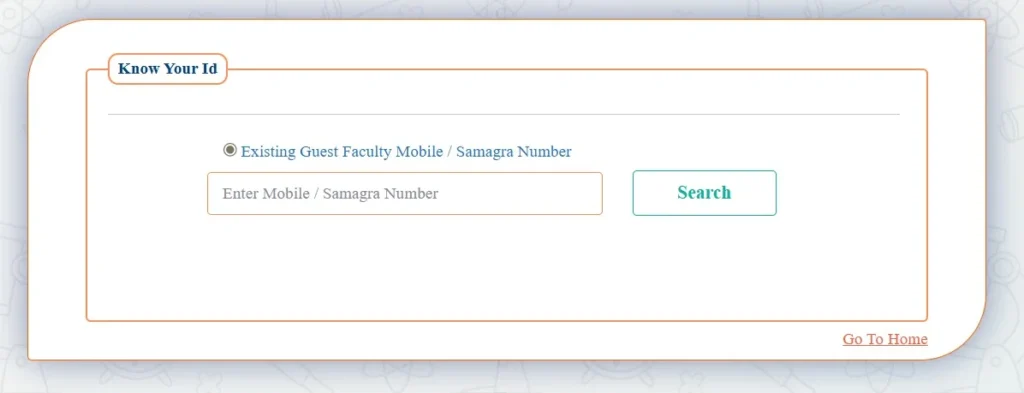
Check Existing GFMS Registration
- Open gfms.educationportal3.in
- Click on “Know Your ID”
- Enter your mobile number or Samagra ID
- Check whether your registration already exists on the portal
- If “Record Not Found” appears, continue with new registration
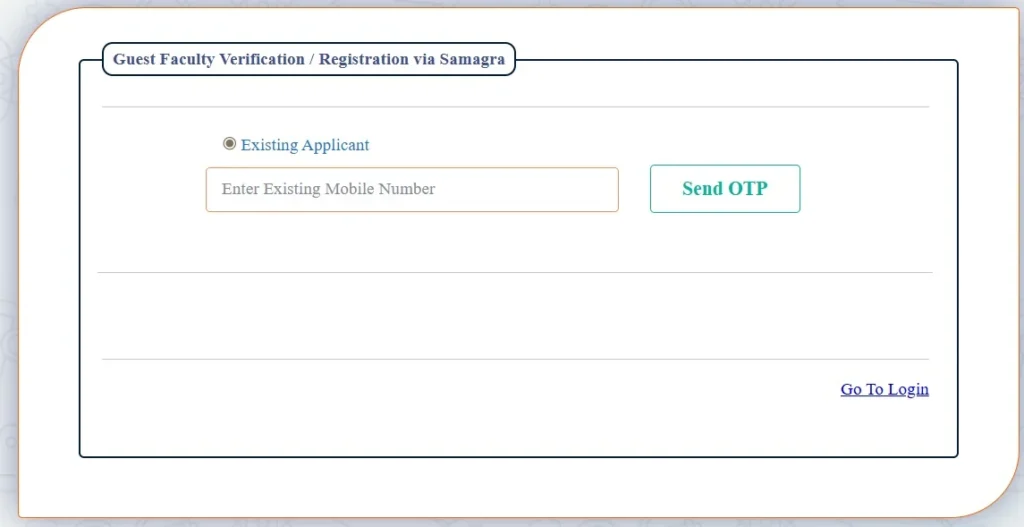
Complete Samagra eKYC Verification
Aadhaar eKYC is mandatory. Registration is not accepted without it.
Step 1: Enter your 12-digit Aadhaar number on the eKYC screen
Step 2: An OTP is sent to the mobile number linked to your Aadhaar
Step 3: Enter the OTP on the portal within the time limit
Step 4: eKYC verified, and your identity is confirmed on GFMS
Make sure your Aadhaar is linked to an active mobile number before starting registration. If your mobile number is not linked to Aadhaar, visit the nearest Aadhaar centre to update it first.
Fill Personal and Address Details
- Enter the remaining personal details like category, marital status, and email ID
- Upload a passport-size photo in JPG format under 100KB
- Fill in permanent and current address details
- Use the checkbox option if both addresses are the same
Submit GFMS Registration Form
- Review all entered details carefully
- Click on “Save” to complete registration
- Portal generates your Login ID, Password, and Guest Profile ID
- Registration details are also sent to your registered mobile number
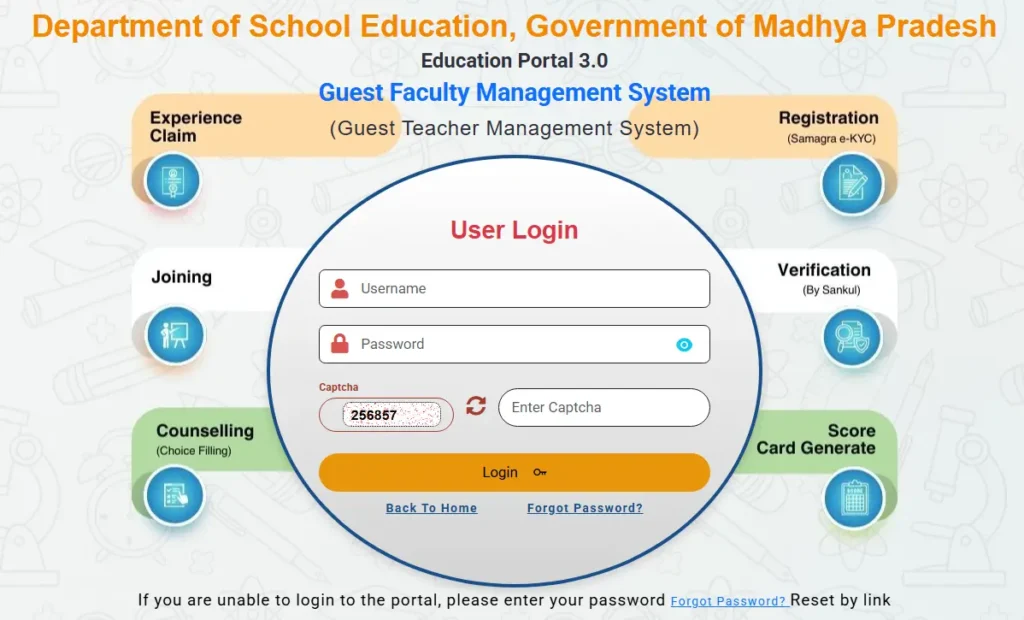
First Login After Registration
- Log in using the default password provided by the portal
- Enter your username and the password.
- System prompts you to create a new password
- Change the default password immediately for account security
- Complete qualification details, document uploads, and profile information after login
What to Do After Successful Registration
- Save your Registration Number. This is your GFMS login username
- Log in to gfms.educationportal3.in using registration number and password
- Check your profile and verify that all details are correct
- Go to the Experience Claim section and upload experience certificates if you have prior teaching experience
- Waiting for Cluster Coordinator verification takes 2 to 3 working days
- Check your scorecard after verification is complete
- Monitor vacancy listings and fill school choices when the allotment process opens
If any detail is incorrect after registration, contact dpi.atithi@gmail.com immediately. Do not create a new registration as duplicate IDs cause scorecard issues.
What to do if GFMS login is not working
If your GFMS Portal login is not working, there can be several possible reasons behind the issue. Before contacting support, try the following troubleshooting steps to resolve the problem quickly.
- Check Samagra e-KYC: Ensure your Samagra ID is linked and verified. Unverified profiles face login blocks.
- Clear browser cache: Clear cookies and history, or use Incognito mode.
- Verify network speed: Poor connectivity causes the portal timeout errors.
- Try off-peak hours: Server overload during peak daytime hours causes login failures. Try early morning or late night.
- Unlock your profile: Locked accounts due to incorrect attempts require a password reset.
Forgot Password on GFMS Portal
To reset your forgotten password on the GFMS Portal (Guest Faculty Management System), follow these steps:
- Visit the Official Portal: Go to the GFMS 3.0 Portal.
- Click Forgot Password: On the login page, click the "Forgot Password" or similar link.
- Enter Details: You will need to provide your Username/GFMS Registration Number and your registered Mobile Number.
- OTP Verification: Enter the OTP sent to your registered mobile number.
- Set New Password: Create a new, strong password (minimum 8 characters, with lowercase, uppercase, digit, and special character).
- Login: Use your user ID and new password to log in.
Important Notes for 2026:
- Existing applicants can update profiles and lock profiles (via Principal) from May 22, 2026, to May 28, 2026.
- If you forgot your User ID, use the Know Your ID option on the portal.
- If you don't receive the OTP, wait 2–3 minutes and check if your mobile number is correctly registered.
GFMS Scorecard
What is GFMS Scorecard
GFMS scorecard is a merit-based point system that ranks every atithi shikshak candidate on gfms.educationportal3.in. Your scorecard decides where you stand in the merit list and which school you get appointed to. A higher score means better school choice. It is generated automatically after document verification, no manual calculation, no human interference.
How Scorecard Points are Calculated
Points are added based on three main factors:
Academic Qualification
- Graduation (base qualification points)
- Post Graduation (additional points over graduation)
- Higher mark percentage adds more points
Teaching Qualification
- B.Ed or D.El.Ed (mandatory teaching qualification points)
- M.Ed or additional teaching certificates add extra points
Experience
- Each year of verified teaching experience adds points to the scorecard
- Experience must be uploaded in the Experience Claim section
- Cluster Coordinator verifies experience within 2 to 3 working days
- Unverified experience adds zero points
Category
- SC/ST/OBC/PwD/EWS categories get additional points as per the MP government rules
How to Check Your Scorecard on GFMS
Step 1: Open gfms.educationportal3.in and log in with registration number and password
Step 2: Go to your candidate dashboard
Step 3: Click on the Scorecard section
Step 4: Your total points, qualification points, and experience points are displayed
If the scorecard shows zero experience points, then check if your experience claim has been submitted and verified by the Cluster Coordinator.
How to Improve Your GFMS Scorecard
- Upload all qualification documents, including Graduation, Post Graduation, B.Ed, and M.Ed certificates
- Add teaching experience certificates in the “Experience Claim” section immediately after registration
- Make sure your experience details are verified by the Cluster Coordinator within a few working days
- Upload caste certificate or PwD certificate if applicable, as additional category points are added automatically
- Avoid creating multiple GFMS IDs, because duplicate accounts can split experience records and reduce your score
- If any qualification or experience points are missing after verification, contact dpi.atithi@gmail.com for correction support
Experience Claim on GFMS Portal
Experience Claim is a feature on gfms.educationportal3.in where atithi shikshak candidates upload their previous teaching experience details and certificates. Every verified year of teaching experience adds points to the GFMS scorecard.
If experience details are not submitted, the scorecard only shows qualification points, while experience points remain zero even if the candidate has teaching experience.
How to Submit Experience Claim
- Log in to gfms.educationportal3.in using your registration number and password
- Open the “Experience Claim” section from the dashboard
- Enter details such as previous school name, UDISE code, subject taught, and service duration
- Upload clear scanned copies of experience certificates and appointment letters
- Review all details and submit the claim
- After submission, the claim is forwarded to the Cluster Coordinator for verification
It is better to upload all experience documents together to avoid repeated verification delays.
Experience Claim Verification Time
Experience claims are usually verified by the Cluster Coordinator within 2 to 3 working days after submission. Once approved, the experience points are automatically added to the GFMS scorecard.
If verification is still pending after one week, candidates can contact dpi.atithi@gmail.com with their registration number and supporting documents.
Experience Not Showing in Scorecard (How to Fix)
Experience Claim Not Submitted
Check the Experience Claim section to confirm whether the claim was submitted successfully. If not, complete the submission process immediately.
Verification Still Pending
Sometimes the claim is submitted, but verification is still under review. Wait for a few working days before raising a support request.
Documents Rejected
Blurred, incomplete, or incorrect certificates may be rejected during verification. Upload clear scanned copies and resubmit the documents.
Duplicate GFMS ID
Creating multiple GFMS IDs can split experience records and reduce scorecard points. Contact dpi.atithi@gmail.com to merge duplicate accounts.
Previous School Closed or Merged
Experience from merged or closed schools may require manual verification. Share the school name, UDISE code, and experience documents with the support team for review.
GFMS Vacancy and Choice Filling
How to Check Available Vacancies
Step 1: Log in to gfms.educationportal3.in using your registration number and password
Step 2: Open the “Vacancy” section from your dashboard
Step 3: Filter vacancies by district, block, subject, or teaching level
Step 4: The portal displays available posts school-wise, with subject and class details
Vacancies are published by DPI (Directorate of Public Instruction). If a school or subject vacancy is missing, it usually means the post has not been released yet.
How Choice Filling Works on GFMS
Choice filling allows candidates to select preferred schools for appointment. This option opens only for a limited period, so candidates should regularly check their GFMS dashboard for active dates.
- Open the “Choice Filling” section on the GFMS portal
- Browse available vacancies based on your subject and district
- Select schools in order of preference, your first choice gets the highest priority
- Review all selected schools carefully before final submission
- Submit your choices before the official deadline
It is better to fill in as many school choices as possible. Candidates with more choices usually have better chances during allotment. Final selection depends on scorecard ranking and merit.
How an Appointment is Confirmed
After the choice filling period ends, school allotment is processed automatically through the GFMS system.
- Candidates with higher scorecards receive priority during allotment
- The system tries to assign the highest available school preference based on merit
- Appointment letters are generated directly on the GFMS dashboard
- Cluster-level guest teacher lists are also published online
- After allotment, candidates must complete the re-joining process
- Report to the allotted school within the joining deadline mentioned in the appointment letter
If a school is merged, closed, or inaccessible after allotment, candidates should contact dpi.atithi@gmail.com with their registration details and appointment information.
Atithi Shikshak Honorarium (Salary Details for MP Guest Teachers)
Guest teachers in Madhya Pradesh are not paid a fixed monthly salary like permanent teachers. They receive a honorarium a daily or monthly payment based on actual attendance marked through the Hamare Shikshak app on Education Portal 3.0. If attendance is not marked on a given day, honorarium for that day is not generated.
Atithi Shikshak Honorarium Rate in Madhya Pradesh
In 2023 the Madhya Pradesh government doubled the honorarium for guest teachers. Grade 1 atithi shikshak now receive ₹18,000 per month, Grade 2 receive ₹14,000 per month, and Grade 3 receive ₹10,000 per month.
| Grade | Teaching Level | Monthly Honorarium |
|---|---|---|
| Grade 1 | Higher Secondary (Class 11 to 12) | ₹18,000 per month |
| Grade 2 | High School (Class 9 to 10) | ₹14,000 per month |
| Grade 3 | Primary and Middle (Class 1 to 8) | ₹10,000 per month |
Honorarium rates are set by the School Education Department of Madhya Pradesh and are subject to revision. Always verify current rates on the official portal at gfms.educationportal3.in or through official DPI notifications.
How Honorarium is Calculated
Atithi shikshak honorarium is attendance-based. Every working day counts.
- Attendance must be marked daily on Hamare Shikshak app within one hour of school opening
- Attendance can also be marked up to half an hour before or after school closes
- If attendance is not marked on a given day honorarium for that day is not generated
- Monthly honorarium is calculated based on total days attended that month
- Missing even one day reduces the monthly payment proportionally
When is Honorarium Paid
- Honorarium is paid on a monthly basis, not period-wise
- Payment is processed through the school's DEO after attendance data is verified on mpeducationportal
- DPI releases honorarium funds to districts and DEOs are responsible for completing payment before specified dates
- Delays in payment can be reported to dpi.atithi@gmail.com with your registration number and school UDISE code
How to Track Honorarium Payment on GFMS Portal
Step 1: Log in at gfms.educationportal3.in with registration number and password
Step 2: Go to Honorarium section from your dashboard
Step 3: View month-wise payment history and pending honorarium status
Step 4: If payment is delayed beyond the official date contact your school admin or DEO first
Step 5: If still unresolved email dpi.atithi@gmail.com with full details
Important Rules About Atithi Shikshak Honorarium
- Guest teacher services are temporary and terminate automatically when a permanent teacher becomes available at the school
- Honorarium is paid only for working days, school holidays and vacations are not counted
- Attendance marked late or outside the allowed window may not be accepted for that day
- Honorarium is linked to active Re-joining status, expired or inactive profiles stop receiving payment
- Any dispute in honorarium calculation should be raised with the school principal first, then DEO, and finally dpi.atithi@gmail.com
GFMS Merit List (Atithi Shikshak Selection List Guide)
Merit list is the most important document for any atithi shikshak candidate. It shows your rank among all candidates in your district and subject, and determines whether you get your preferred school or not. Here is everything you need to know about the GFMS merit list process.
What is GFMS Merit List?
The GFMS merit list is an essential document for atithi shikshak candidates in Madhya Pradesh. It ranks candidates based on their qualifications and experience and determines eligibility for guest teacher positions across various schools in the state.
The merit list is generated automatically by the GFMS system after:
- Registration is complete
- Aadhaar eKYC is verified
- Documents are uploaded and verified by Cluster Coordinator
- Experience claim is approved
- Profile is locked by Cluster Principal
Your position on the merit list depends entirely on your scorecard points. Higher scorecard means better rank means better school choice.
When Does GFMS Merit List Come?
Merit list release follows a fixed academic cycle. Here is the general timeline:
| Stage | When It Happens |
|---|---|
| Registration and Profile Lock | May to June (academic year start) |
| Cluster Coordinator Verification | Within 2 to 3 working days of submission |
| Provisional Merit List | After verification deadline closes |
| Objection Window | A few days after provisional list |
| Final Merit List | After objections are resolved |
| Choice Filling Opens | After final merit list (July to August) |
| School Allotment | After choice filling deadline |
Merit list dates change every academic year. Always check your GFMS login dashboard and official DPI notifications for exact dates. For 2026 registration and profile lock was active from May 22 to May 28, 2026.
How to Check GFMS Merit List
Step 1: Open gfms.educationportal3.in on Google Chrome
Step 2: Log in using your registration number and password
Step 3: Go to Merit List section from your candidate dashboard
Step 4: Enter your name and application or enrollment number to access your merit list position
Step 5: Download the merit list PDF and save it for reference
Step 6: Note your rank, district, subject, and scorecard position
GFMS Re-Joining Process
Re-Joining is the final confirmation process for atithi shikshak after school allotment on gfms.educationportal3.in. Once a candidate receives an appointment, they must submit a Re-Joining request through the portal to confirm acceptance of the allotted school. Without completing Re-Joining, the appointment is not treated as active, and the candidate cannot officially join the school.
How to Submit Re-Joining Request
- Log in to gfms.educationportal3.in using your registration number and password
- Open the “Re-Joining” section from the dashboard
- Check allotted school details including school name, subject, and block
- Submit the Re-Joining request to confirm your appointment
- The school admin reviews and approves the request from their portal login
- After approval, the Re-Joining process is completed successfully
Submit the request within the deadline mentioned in the appointment letter. Missing the deadline may cancel the allotment automatically.
Re-Joining Request Rejected (What to Do)
Sometimes Re-Joining requests are rejected due to verification issues, accidental rejection, or old school records.
If Rejected by Mistake
- Email dpi.atithi@gmail.com immediately
- Mention your registration number, allotted school name, UDISE code, and rejection details
- The department reviews the case and restores the Re-Joining option
- After restoration, log in again and resubmit the request
If the previous school was merged or closed
Merged or closed school records can block Re-Joining and choice filling automatically. These cases are resolved only at the department level.
- Contact dpi.atithi@gmail.com with your registration number
- Include previous school name, UDISE code, and related details
Do not create a new GFMS ID to solve Re-Joining problems. Duplicate registrations can split records, reduce scorecard points, and delay verification further.
GFMS Portal Contact and Support
For any issue on gfms.educationportal3.in contact the official support channels below. Do not use unofficial sources or third-party helplines.
| Support Type | Details |
| GFMS Helpdesk Email | dpi.atithi@gmail.com |
| Education Portal Helpdesk | helpdeskportal3@gmail.com |
| GFMS Helpline Number | 0755-2600124 |
| Helpline Timing | 10:30 AM to 5:30 PM (Working Days Only) |
| Official GFMS Portal | gfms.educationportal3.in |
| Samagra eKYC Link | gfms.educationportal3.in/GuestFacultyUserLogin/SamagraVerification |
When emailing helpdesk, always include:
- Full name and registration number
- Samagra ID
- Issue description (clear and specific)
- Screenshot if possible
Contact the Right Channel
| Issue | Contact |
| Registration and eKYC | dpi.atithi@gmail.com |
| Scorecard and experience points | dpi.atithi@gmail.com |
| Duplicate ID merging | dpi.atithi@gmail.com |
| Re-Joining issues | dpi.atithi@gmail.com |
| Portal login and technical issues | helpdeskportal3@gmail.com |
| General portal problems | 0755-2600124 |
⚠️ Important GFMS Portal Updates
Candidates using the GFMS Portal should complete all pending updates and verification steps before the official deadlines. Several important services and profile update options are currently active on the portal.
1. Profile Update and Document Upload Started
Pre-registered applicants can now log in and update their profile details. Candidates should also upload any pending documents using their existing GFMS login ID and password.
2. Board and University Name Entry is Mandatory
GFMS has added a new field for Board and University name in the registration form. All pre-registered applicants must log in and complete this section before proceeding further.
3. Important Portal Activities Open from 22 May to 28 May 2026
The following services are active during this period:
- Profile lock and verification through Cluster Principal
- Experience sheet panel information entry
- GFMS ID merging for candidates with multiple IDs
4. Geography Subject Update for Higher Secondary Art Faculty
Candidates updating Higher Secondary qualifications should select the correct option carefully:
- Select “Art with Geography” if Geography was included in Higher Secondary
- Select only “Art” if Geography was not part of the subject combination
Complete qualification updates before the deadline to avoid verification issues.
5. Pending eKYC Must Be Completed
Applicants registered on GFMS Portal 2.0, or candidates on Portal 3.0 with incomplete eKYC, should complete Samagra eKYC immediately.
Use this link to continue verification:
gfms.educationportal3.in/GuestFacultyUserLogin/SamagraVerification
After opening the page, click on the “Samagra eKYC” option to proceed.
Update july 2026: The e-attendance process has now been decentralized to the district level. Read the latest order here.
Frequently Asked Questions (FAQs)
Conclusion
In conclusion, the GFMS Portal 2026 has made the guest faculty recruitment process more transparent, faster, and easier for candidates across Madhya Pradesh. From registration and profile verification to scorecard checking, experience claim submission, and appointment updates, all services are now available online through the Education Portal 3.0. Candidates should regularly visit the portal for the latest notifications, merit lists, counseling schedules, and official updates to avoid missing any important information.